Racesignup allows event organisers to offer discounts on entry fees using discount codes. These can be useful for offering reduced prices to volunteers, helpers, club members or other groups of entrants.
You can offer a percentage discount or a fixed monetary amount, restrict when it can be used, and limit the number of times it can be claimed.
There are two steps to setting up a discount:
- Create a Discount record in Race Admin.
- Enable the Discount field on your event’s entry form.
Both steps are needed before entrants can use the code.
Creating a discount
- In Race Admin, select your Working Event.
- Go to Setup → Discounts.
- Click New to create a discount.
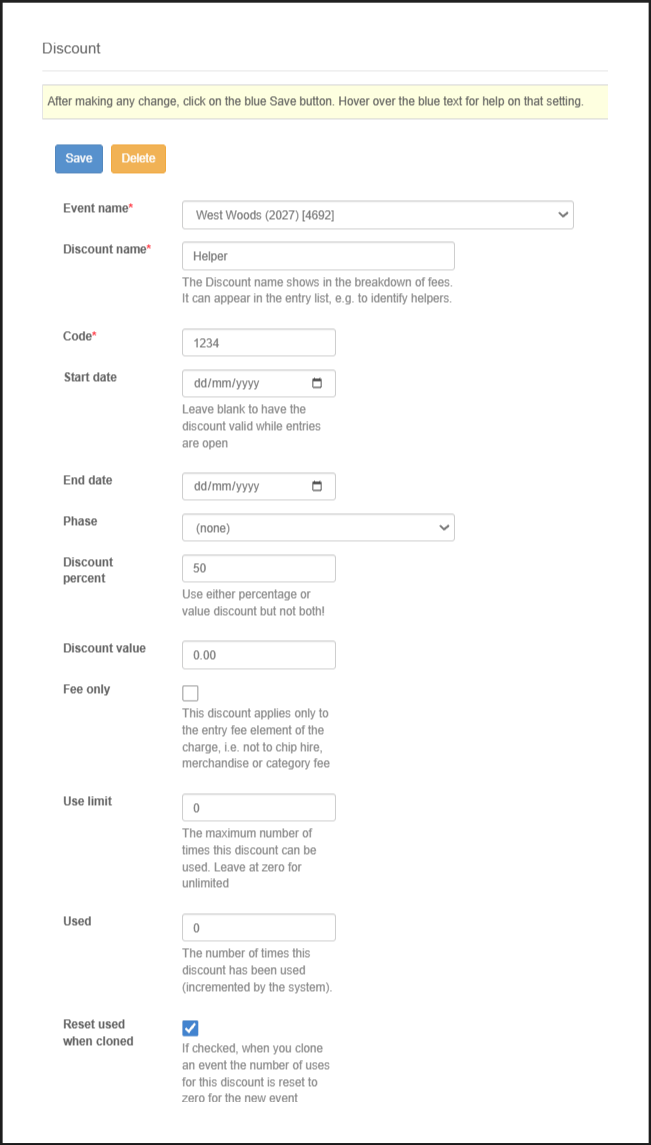
Complete the fields as described below.
Discount name
Enter a short, descriptive name such as Helpers, Volunteers or Club Members. The discount name appears in the breakdown of fees and may also appear in entry lists, helping you identify the discount.
Code
Enter the code that entrants must provide to claim the discount, for example HELPER25. Share this code with the people entitled to use it.
Start date and End date
These optional dates control when the discount is available.
- Start date: Leave blank to allow the discount whenever entries are open.
- End date: Leave blank if the discount does not need an end date.
Phase
Select an Event Phase if the discount should apply only to entries in that phase. Leave the field set to (none) if no phase restriction is required.
Discount percent and Discount value
Choose one of the following:
- Discount percent: Enter a percentage, such as
50for a 50% discount. - Discount value: Enter a fixed monetary amount, such as
5.00for a £5 discount.
Use either Discount percent or Discount value, not both.
Fee only
Tick Fee only to apply the discount only to the entry fee element of the charge. Extras such as chip hire, merchandise and parking are excluded.
Leave Fee only unticked to apply the discount to the total fee, including any extras.
Use limit
Enter the maximum number of times the discount can be used. For example, enter 20 to allow 20 uses. Enter 0 for unlimited use.
Used
This shows how many times the discount has been used. Racesignup updates this count as the discount is claimed.
Reset used when cloned
If selected, the Used count is reset to zero when the event is cloned to create a new event. We recommend leaving this selected so the new event begins with a fresh usage count.
Save your discount
Click the blue Save button once you’ve completed the fields.
Remember to save your changes! If you close the form without clicking Save, any changes you’ve made will be lost.
Adding the Discount field to your entry form
Creating the discount record is only the first step. You must also make the Discount field available to entrants.
- In Race Admin, select your Working Event.
- Go to Setup → Entry Form → Standard Items.
- Find the Discount field.
- Enable it for inclusion on the entry form.
- Click Save.
Entrants can then enter their discount code when completing their entry.
Testing your discount
Before sharing a discount code, we recommend checking it on your event’s entry page.
- Open your event’s entry page and check that the Discount field is displayed.
- Enter the code and confirm that the expected reduction is applied.
- If you’ve restricted the discount by date or phase, check that it behaves as intended.
- If your event charges for extras, check that the Fee only option produces the result you want.
Managing existing discounts
Return to Setup → Discounts to review or edit your discounts. The Used field lets you see how often each code has been claimed and, where a Use limit is set, how many uses remain.
Useful tips
- Choose clear codes. Use codes that are easy to read and type, such as
HELPER25. - Set a use limit where appropriate. This is helpful for discounts intended for a small group.
- Check the dates and phase. These restrictions may explain why a code is not accepted.
- Remember the entry form. If entrants cannot see where to enter a code, check Setup → Entry Form → Standard Items.
- Review discounts when cloning an event. Check codes, amounts, dates and use limits, and whether the usage count should be reset.