Racesignup allows you to set minimum and maximum ages for an entire event or for individual Courses, Classes and Categories. These restrictions help ensure that entrants select competitions appropriate to their age.
Before setting age restrictions, check how age is calculated for your event. The Age defined on setting determines which age is used, and this can make a difference around birthdays.
Where age restrictions can be applied
You can specify a minimum age, a maximum age, or both, at several levels:
- Whole event — controls eligibility for the event generally.
- Course — controls eligibility for a particular Course.
- Class — controls eligibility for a particular Class.
- Category — controls eligibility for a particular Category.
For example, you might set a minimum age for the event and a higher minimum age for a longer or more demanding Course.
Enter 0 where no minimum or maximum restriction is required.

Understanding the event’s age settings
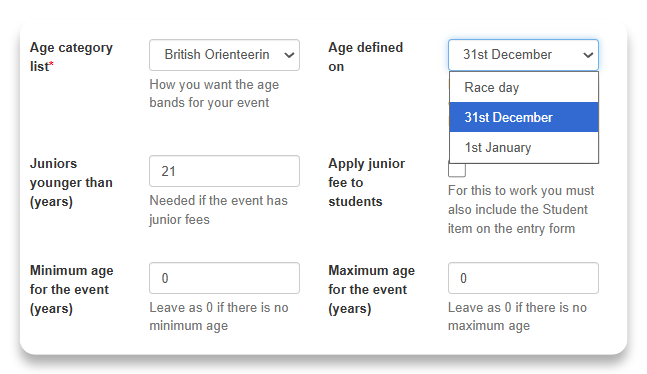
The event’s Age Settings include Age defined on, which determines the date used to calculate an entrant’s age.
The available options are:
- Race day — age on the day of the event.
- 31st December — age on 31 December in the relevant year.
- 1st January — age on 1 January in the relevant year.
Using Race day
Choose Race day when age restrictions must be based on an entrant’s actual age on the day of the event.
You must collect the entrant’s full date of birth on the entry form. Collecting only the year of birth is not sufficient to establish their exact age on race day.
For example, if a Course has a minimum age of 16, an entrant who is still 15 on race day will not meet the restriction, even if they turn 16 later that year.
Using 31st December
When 31st December is selected, organisers will generally collect the entrant’s year of birth. Age restrictions are then based on their age at the end of the year, rather than their age on race day.
For example, an entrant who is 15 on race day but turns 16 in December would be treated as 16 for a Course with a minimum age of 16.
Important: If an age restriction must be enforced using an entrant’s actual age on race day, choose Race day and collect their full date of birth.
Using 1st January
The 1st January option calculates age at the start of the relevant year. Use it only when this is the age convention appropriate to your event.
Example: Age restrictions at an urban orienteering event
At some urban orienteering events, competitors under 16 are not permitted on Courses involving traffic. This is a safety restriction based on the competitor’s actual age on race day.
British Orienteering age categories, however, are based on age at 31st December. This can make a difference for a competitor whose birthday falls after the event.
For example, a competitor might:
- Be 15 years old on race day.
- Turn 16 later in the same year.
- Be treated as 16 for the purposes of British Orienteering’s year-end age calculation.
Even though that competitor is treated as 16 for competition age purposes, they must not enter a Course requiring competitors to be at least 16 on race day.
To apply this restriction correctly:
- In the event’s Age Settings, set Age defined on to Race day.
- Include Date of Birth on the entry form so that the entrant’s actual age can be calculated.
- Set the relevant Course’s minimum age to 16.
- Hide the calculated age category from the entry summary and public start list, because it may not match the usual British Orienteering age category.
If your timing system needs age categories calculated at 31st December, you can change Age defined on to 31st December after entries have closed, and then check the calculated categories before exporting the data.
Important: Do not switch to 31st December while entries are still open if the Course has an age restriction based on actual age on race day. Doing so could allow an under-16 competitor to enter a Course that they are not permitted to run.
Setting an age restriction
- In Race Admin, select your Working Event.
- Open the event, Course, Class or Category record where you want the restriction to apply.
- Enter the required minimum age and/or maximum age.
- Leave either value as 0 if you don’t want a restriction at that end of the age range.
- Click the blue Save button.
Remember to save your changes! If you close a form without clicking Save, any changes you’ve made will be lost.
Age categories and public displays
There is an important consideration when using Race day to enforce an exact age restriction, particularly for events whose competition age categories are normally defined using 31st December.
Although the age restriction will be based on the entrant’s actual age on race day, the calculated age category may not match the category expected for that discipline.
In this situation, we recommend hiding the calculated age-category value from:
- The entry summary.
- The public start list.
This avoids displaying potentially misleading age categories to entrants and other visitors.
Providing age categories to a timing system
Some timing systems need the age category calculated according to the discipline’s normal convention, even when entries were subject to an actual race-day age restriction.
If this applies to your event and the appropriate convention is 31st December, you can use the following approach:
- While entries are open, set Age defined on to Race day and collect full dates of birth, so the age restrictions reflect actual age on race day.
- Hide the calculated age category from the entry summary and public start list.
- Once entries have closed, change Age defined on to 31st December.
- Check the calculated categories before producing the data required by your timing system.
Take care: Changing the age calculation setting changes the basis on which ages and age categories are determined. Make this change only after entries have closed, and check the exported information before passing it to your timing provider.
Testing your age restrictions
Before opening entries, check the restrictions using entrants with ages near the permitted limits. In particular, test someone who has not yet had their birthday on race day but will reach the minimum age later in the year.
Check that the results match your intended rules, and that the entry form collects the required date-of-birth information for your chosen Age defined on setting.
Useful tips
Use Race day for exact age limits. If an entrant must already have reached a particular age by the event date, collect their full date of birth.
Use 0 (zero) for no restriction. A minimum or maximum age of 0 means no limit at that end of the range.
Check age-category displays. Race-day age calculations may not match the usual age-category convention for your discipline.
Test borderline ages. Entrants whose birthdays fall between race day and the end of the year are particularly useful test cases.