Racesignup uses Fee Bands to determine how much an entrant pays to enter your event.
For a straightforward event, you will normally need just one Fee Band. This can contain different fees for Senior and Junior entrants, together with optional additional charges.
For more complicated events, you can create additional Fee Bands to offer early-bird prices, charge different fees for particular Courses or Categories, or accommodate other pricing arrangements.
We recommend keeping things simple and creating as few Fee Bands as possible.
This guide explains how to set up basic entry fees. Links to more advanced options are provided at the end.
Creating a Fee Band
In Race Admin, select your Working Event and go to Setup → Fee Bands.
You’ll see a table showing any Fee Bands already defined for your event.
Click New to create a Fee Band, or Edit to change an existing one.
If you’ve cloned an event from a previous year, you may already have one or more Fee Bands. Check these carefully to ensure the fees and dates are still appropriate.
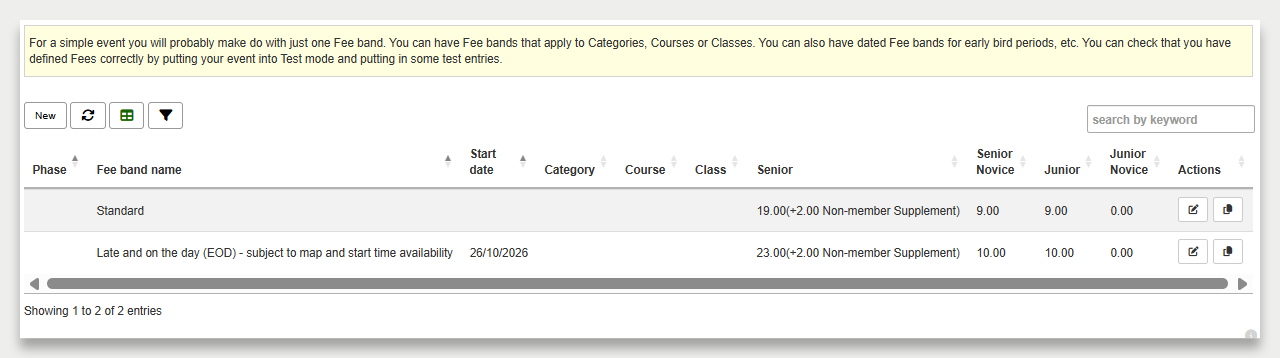
The Fee Band settings
The first section of the editing form controls where and when the Fee Band applies.
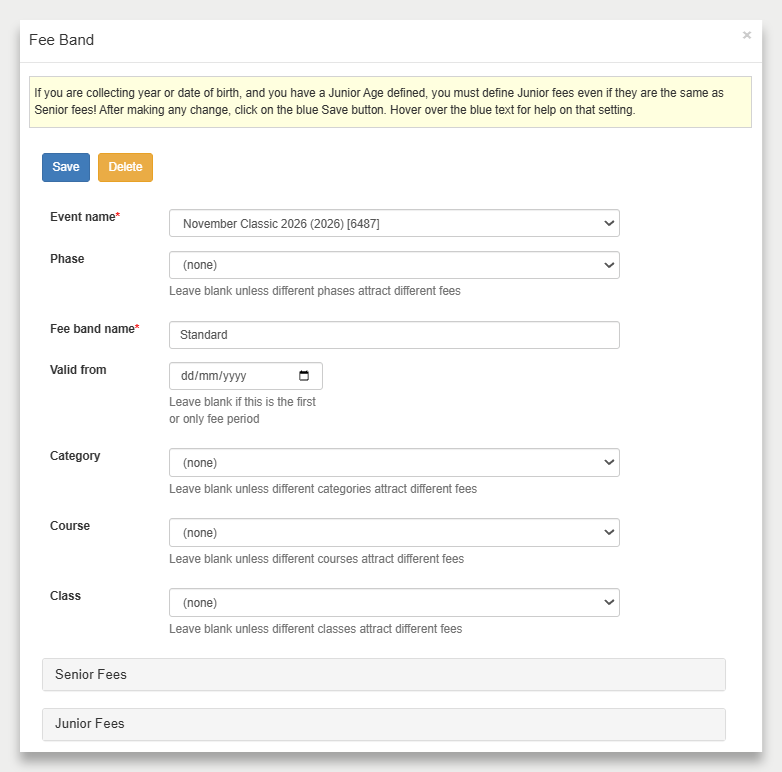
Fee Band name
Enter a descriptive name, such as Standard Fees.
The name helps you identify the Fee Band, particularly if you have several.
Valid from
Important: Always leave Valid from blank on your first Fee Band.
This ensures that an appropriate Fee Band is available when entries open.
If you’re using additional Fee Bands to change prices during the entry period, you can set a Valid from date on those later Fee Bands.
Phase, Category, Course and Class
These fields allow you to restrict a Fee Band to particular parts of your event.
For a basic Fee Band that applies to everyone, leave all four set to (none).
You can use these settings later if you need different entry fees for particular Phases, Categories, Courses or Classes.
Setting Senior fees
Expand the Senior Fees section.
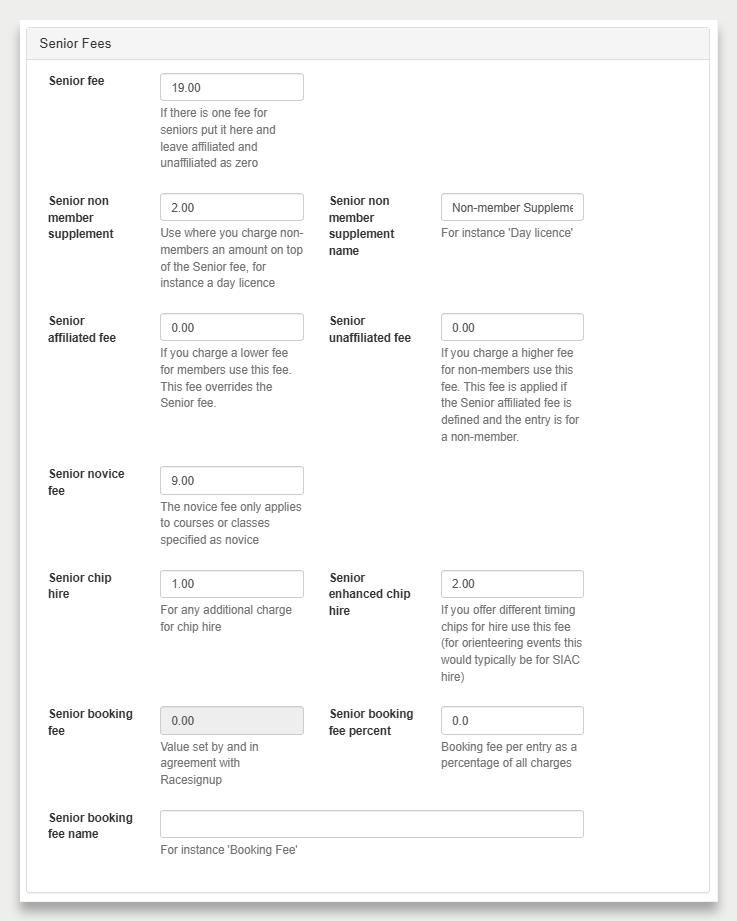
The main field is Senior Fee.
Enter the amount you wish to charge a Senior entrant. For example, enter 15.00 for a £15 entry fee.
If all Senior entrants pay the same amount, this may be the only entry-fee field you need to complete.
The other fields allow you to specify additional charges or different fees for particular entrants.
For example, you can:
- Add a supplement for entrants who aren’t members of the relevant governing body.
- Charge different fees for affiliated and unaffiliated entrants.
- Specify a reduced fee for novices.
- Add a charge for hiring a timing chip, where applicable.
These options are covered in more detail in our specialist guides.
Setting Junior fees
Expand the Junior Fees section.
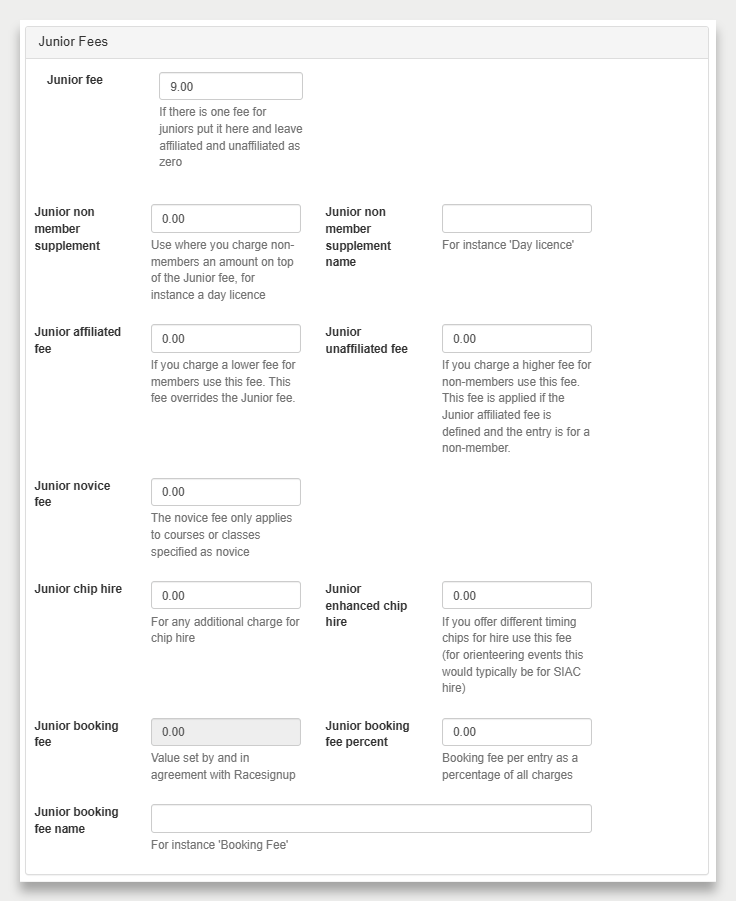
The Junior settings work in much the same way as the Senior settings.
Enter the appropriate amount in Junior Fee.
For example, if Senior entries cost £15 and Junior entries cost £8, enter:
| Field | Amount |
|---|---|
| Senior Fee | £15.00 |
| Junior Fee | £8.00 |
Racesignup determines whether an entrant is a Junior using the age settings defined for your event.
If you’ve defined a Junior Age, remember to complete the Junior fee settings even when Juniors pay the same amount as Seniors.
For example, if everyone pays £10, enter 10.00 in both the Senior Fee and Junior Fee fields.
The Junior Fees section also includes options for membership-related charges, novice fees and chip hire.
Booking fees
Most organisers include the Racesignup processing fee in their stated entry fee. This processing fee is deducted by Racesignup from payments received and is not configured by the organiser in Fee Bands.
Depending on your agreement with Racesignup, you may instead have a separately charged booking fee, added on top of the stated entry fee. Where this applies, it may be configured as a percentage or a fixed amount. Please contact Racesignup for more information if this is of interest.
Saving your Fee Band
Once you’ve entered your fees, click the blue Save button.
Remember to save your changes! If you close the form without clicking Save, any changes you’ve made will be lost.
Checking that your fees are correct
Always test your fees before opening entries to the public.
Racesignup provides a quick way to check fee calculations without having to complete a full entry.
We recommend testing at least:
- A Senior entry.
- A Junior entry, if applicable.
- An affiliated and unaffiliated entrant, if you charge different fees.
- Any additional charges you’ve configured.
If your event offers several Courses or Categories, check that the fees are correct for each.
See How can I quickly test that fees are calculating OK? for instructions.
When you need more than one Fee Band
A single Fee Band is sufficient for many events, but you can create additional Fee Bands when different prices are required.
Early-bird and late-entry pricing
You can offer a lower price to people who enter early and increase it at a specified date.
Different fees for Courses or Categories
You might charge different amounts for a short race and a long race, or for different competition Categories.
Multi-phase events
You can define different fees for individual Phases of an event. See Multi-phase events for more information.
Special pricing arrangements
Racesignup also supports options such as reduced fees for young adults, students and novice competitors.
See Charging a lower fee for young adults for an example.
We recommend familiarising yourself with the basic Fee Band settings before introducing more complicated pricing.
Useful tips
Keep the number of Fee Bands to a minimum. Use a single Fee Band unless you have a specific reason to create additional ones.
Leave the first Valid from date blank. This is essential to ensure that your event has a valid starting Fee Band.
Check Senior and Junior fees. Remember to specify both where your event uses Junior age classifications.
Review cloned events. Check amounts, dates and any special pricing restrictions carried over from the previous event.
Test before opening entries. Don’t assume that your fees are correct simply because you’ve completed the form. Use the fee-testing facility to check them.
Further guidance
The following topics are covered in separate articles or are planned for the knowledge base:
- Membership and non-member fees.
- Early-bird and late-entry pricing.
- Different fees for Courses, Categories, Classes and Phases.
- Orienteering novice fees and chip hire.
- Booking fees and additional charges.
These guides explain how to use more advanced Fee Band settings when your event requires them.